
How to prepare website images without making pages slow
By Dismus Nganyi · 4 min read
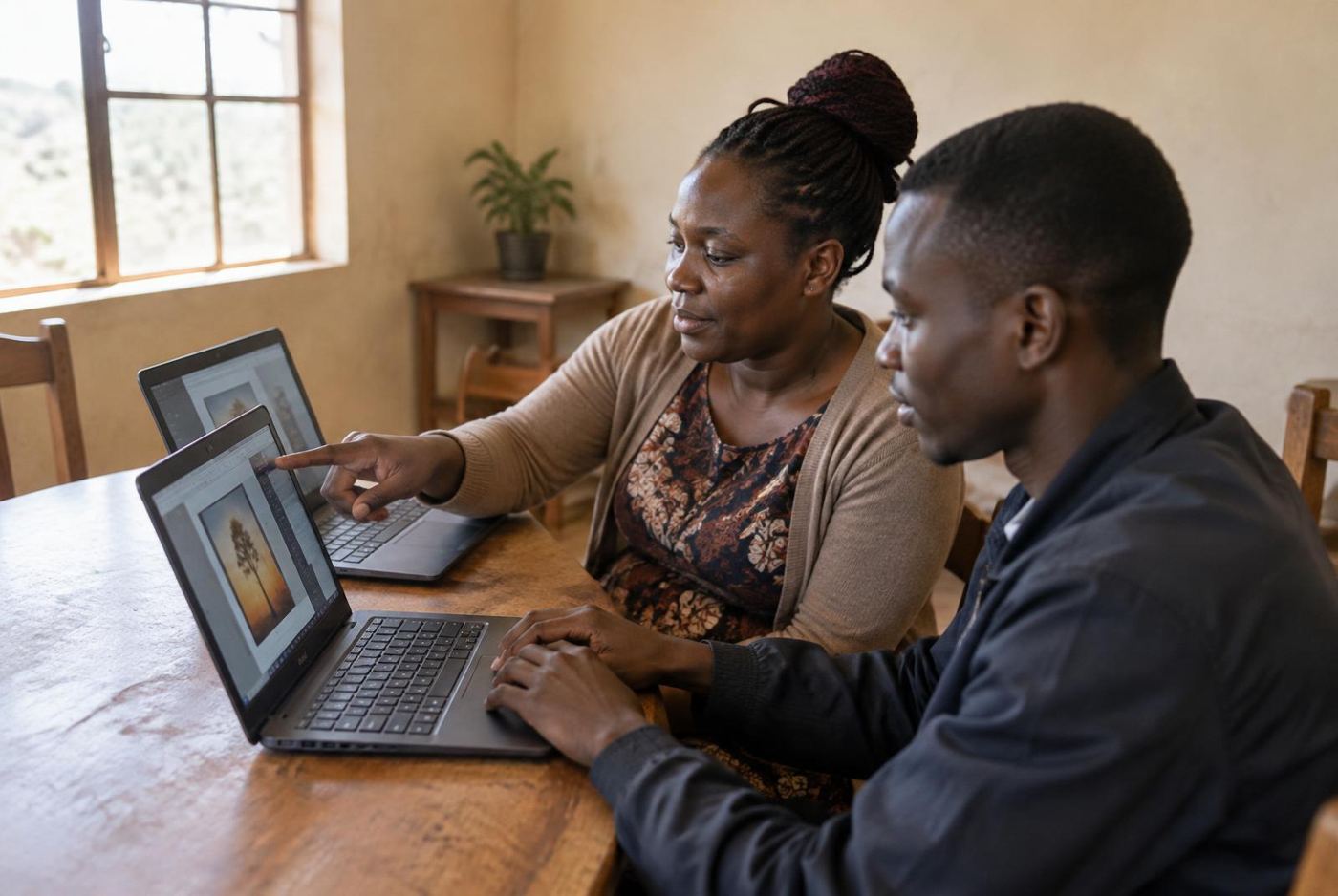 Illustrative photo
A website image should look clear without carrying unnecessary weight. Here’s a practical preparation checklist to use before uploading.
A good photograph can explain a service quickly, but uploading the largest available file isn’t always helpful. Website visitors need a clear image that suits the space where it appears. Start by separating your original photographs from the versions prepared for the website. Keep the originals safely, then work on copies so you can make a different crop or export later.
1. Choose images that do a useful job
Before changing file settings, decide whether the image belongs on the page. Does it show a product, explain a process or help someone recognise the premises? A hardware shop in Nakuru might need a clear entrance photograph and relevant product pictures, not a gallery of near-identical shots. Fewer purposeful images are easier to maintain.
Use images you have the right to publish. Check consent where people are identifiable, and remove unnecessary personal information from screenshots. Don’t use a customer’s document as sample content. Review the background as well as the subject: a useful photo can still expose something that shouldn’t be public.
2. Match dimensions to the layout
Pixel dimensions describe how wide and tall an image is. File size describes how much data the file contains. They’re connected, but they aren’t interchangeable. Ask your designer what dimensions and crop are appropriate for each placement, including how the image will appear on mobile and higher-density screens.
A wide banner and a square product card need different framing. Crop deliberately instead of letting the website cut off the subject by accident. For a salon photo, check that important parts of the hairstyle remain visible in each layout. Responsive image versions can help the website provide an appropriate file for the visitor’s screen.
3. Choose a format for the content
JPEG is a practical option for photographs when you don’t need transparency. PNG supports transparency and can suit certain graphics, though it isn’t automatically the best choice for every photo. WebP is another useful web format that supports both lossy and lossless compression, as well as transparency. Compare the actual results rather than choosing by habit.
- For a photograph, compare a suitably compressed JPEG and WebP.
- For artwork needing transparency, check PNG or WebP output.
- Keep an appropriate original logo file instead of enlarging a screenshot.
- Check what your website’s upload and image-processing tools support.
Changing a filename ending doesn’t convert the image. Use an export or conversion tool, then open the resulting file to check it. If your website creates optimised versions automatically, ask what you still need to prepare before uploading.
4. Compress without losing important detail
Compression reduces file size, sometimes by discarding visual information. Compare exports at the intended viewing size and inspect important areas such as product labels, faces and fine edges. A smaller file isn’t a success if the customer can no longer understand what it shows. There’s no single quality setting that suits every image.
Avoid repeatedly editing and re-exporting an already compressed delivery file. Return to your working original where possible. Keep a simple naming system so you can distinguish the source, edited master and web export. Test several images together on the real page; one lightweight file doesn’t tell you how an entire gallery behaves.
5. Write filenames and alt text for people
Use short, descriptive filenames that identify the content, such as a business name followed by the subject. Don’t stuff a long list of towns and services into every filename. The description should match the actual picture rather than the search phrase you hope to rank for.
Alt text provides a text alternative according to the image’s purpose in the page. Describe the useful information, not every visible detail. A salon entrance photo might identify the entrance and landmark if that helps visitors locate it. Decorative images generally need empty alt text; ask your developer to handle that correctly rather than inventing a description.
6. Check loading behaviour on the finished page
Lazy loading can defer images that aren’t needed immediately, such as those further down a gallery. It shouldn’t be applied blindly to the main image visitors need as the page opens. Ask the developer to choose loading behaviour appropriately and reserve image space so content doesn’t unexpectedly shift as pictures appear.
Keep this preparation checklist beside your upload process. It’s easier to maintain a consistent standard as new pictures arrive than to untangle a large media library later.
Want help putting this into practice?
Tell me what you're working on and I'll suggest the simplest next step.