
A beginner’s guide to Photoshop for everyday design work
By Dismus Nganyi · 4 min read
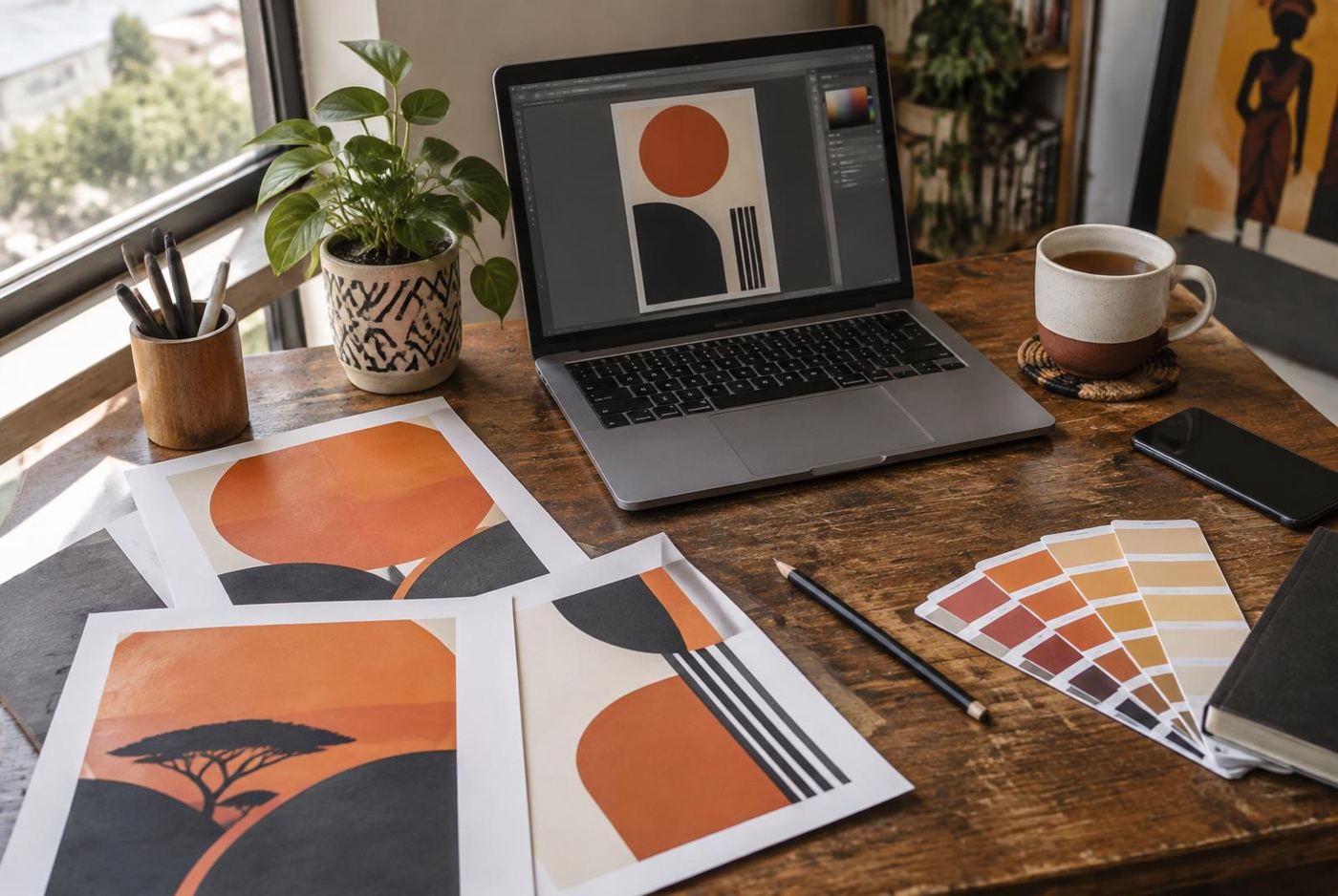 Illustrative photo
You don’t need to learn every Photoshop tool at once. Start with a small set of skills that help you edit photos and prepare everyday business designs.
Photoshop can feel crowded when you first open it. There are panels, tools and menus you won’t need for your first task. Start with a real but manageable exercise: prepare a product photo for a hardware shop in Nakuru, or make a simple image for a salon announcement. The goal is to understand a repeatable workflow, not memorise every button.
1. Keep an original and create a working file
Keep the original photograph untouched. Work on a copy and save an editable Photoshop document while you build the design. Use a clear filename so you can tell the source image, working document and finished export apart. This small habit prevents a lot of confusion when someone asks for a change later.
Before editing, decide where the image will be used. A website photograph, WhatsApp graphic and printed poster may need different dimensions and preparation. Write down the intended output instead of guessing at the end. For print work, get the printer’s specifications before committing to the document setup.
2. Learn to read the Layers panel
Layers let you keep parts of a design separate. A photograph, heading and logo can each sit on their own layer, making them easier to move or revise. In the Layers panel, the stacking order affects what appears in front. Try hiding a layer and showing it again to understand what it contributes.
Name layers according to their purpose rather than leaving a long list of unclear names. Check which layer is selected before moving or editing something. If the wrong object changes, stop and check the selection rather than continuing. Keep related layers organised so the document remains understandable when you return to it.
3. Use selections to limit an edit
A selection defines the area you want to work on. Start with the Rectangular Marquee tool on a practice image, then try selecting a simple area with the Lasso tool. Notice the selection boundary and practise deselecting when you’re done. An active selection can explain why an edit affects only part of the image.
Don’t begin with a complicated subject such as loose hair against a busy background. Practise on a clear object first. When an edit needs to remain adjustable, learn how layer masks can hide parts of a layer without immediately deleting them. Check edges against the background where the finished image will be used.
4. Adjust colour and brightness carefully
Adjustment layers let you make colour and tonal changes without directly changing the underlying image pixels. Start with Brightness/Contrast or Levels and make small changes. Compare the edited version with the original by switching the adjustment layer’s visibility off and on. Ask whether the result is clearer, not merely more dramatic.
For business photographs, accuracy matters. A paint sample, item of clothing or salon result shouldn’t be pushed into a misleading colour. If one part needs a different treatment, practise using the adjustment layer’s mask. You don’t need to solve every lighting problem with one heavy adjustment across the entire photograph.
5. Separate cropping, resizing and retouching
The Crop tool changes the framing. Image Size changes the image dimensions. These are related decisions, but they aren’t the same task. Crop to remove distractions and improve the composition, then prepare the pixel dimensions needed for the output. Avoid stretching a photograph to force it into a differently shaped space.
The Spot Healing Brush tool can help with small unwanted marks. Practise on a copy and inspect the result closely: nearby texture can become distorted. Removing a dust spot is different from changing a person’s appearance or hiding damage on a product. Keep edits honest and get permission where a person’s photograph is involved.
6. Export a usable file and inspect it
Keep the editable document, then make a separate delivery file. Photoshop’s Export As and Quick Export options support common output formats. For ordinary web photographs, compare a JPEG export at suitable quality settings. Use PNG when the output needs transparency, checking that the exported background behaves as expected.
- Confirm the final crop and pixel dimensions.
- Check spelling, logo proportions and image quality.
- Export a separate file for the intended use.
- Open that exported file outside Photoshop and inspect it.
Repeat this workflow with a few simple images before adding more advanced techniques. A well-organised file and a clean, accurate export are more valuable than using a large number of tools without understanding what they changed.
Want help putting this into practice?
Tell me what you're working on and I'll suggest the simplest next step.